
HOTSPOT - Case study - Overview - Contoso, Ltd. is a consulting company that has a main office in Montreal and two branch offices in Seattle and New York. Contoso has the users and computers shown in the following table.  The company has IT, human resources (HR), legal (LEG), marketing (MKG), and finance (FIN) departments. Contoso recently purchased a Microsoft 365 subscription. The company is opening a new branch office in Phoenix. Most of the users in the Phoenix office will work from home. Existing Environment - The network contains an Active Directory domain named contoso.com that is synced to Azure AD. All member servers run Windows Server 2016. All laptops and desktop computers run Windows 10 Enterprise. The computers are managed by using Microsoft Configuration Manager. The mobile devices are managed by using Microsoft Intune. The naming convention for the computers is the department acronym, followed by a hyphen, and then four numbers, for example FIN-6785. All the computers are joined to the on-premises Active Directory domain. Each department has an organizational unit (OU) that contains a child OU named Computers. Each computer account is in the Computers OU of its respective department. Intune Configuration - The domain has the users shown in the following table.
  User2 is a device enrollment manager (DEM) in Intune. The devices enrolled in Intune are shown in the following table.
 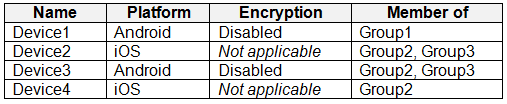 The device compliance policies in Intune are configured as shown in the following table.
  The device compliance policies have the assignments shown in the following table.
 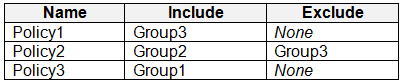 The device limit restrictions in Intune are configured as shown in the following table.
  Requirements - Planned changes - Contoso plans to implement the following changes: • Provide new computers to the Phoenix office users. The new computers have Windows 10 Pro preinstalled and were purchased already. • Implement co-management for the computers. Technical Requirements - Contoso must meet the following technical requirements: • Ensure that the users in a group named Group4 can only access Microsoft Exchange Online from devices that are enrolled in Intune. • Deploy Windows 10 Enterprise to the computers of the Phoenix office users by using Windows Autopilot. • Create a provisioning package for new computers in the HR department. • Block iOS devices from sending diagnostic and usage telemetry data. • Use the principle of least privilege whenever possible. • Enable the users in the MKG department to use App1. • Pilot co-management for the IT department. To which devices do Policy1 and Policy2 apply? To answer, select the appropriate options in the answer area.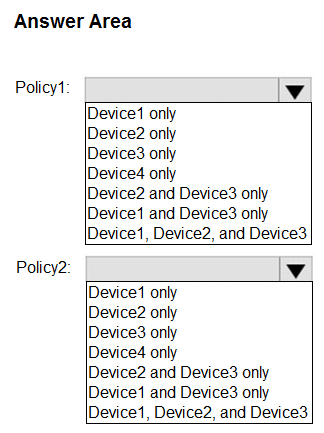
Microsoft Endpoint MD-102 Real Exam Questions [October 2026 Update] Quiz
Free preview: Question 20 of 35.
Q: 20
Your Answer
Discussion
Generate CSV, upload via Intune, then reset. I don't think azcopy is right here, it's easy to confuse for bulk.
Generate CSV, upload to Intune, then reset. Matches what I've seen before, nice clear sequence here.
Good sequence here. You'd first generate the CSV with hardware info, then upload it in Intune, and finally reset the computer for Autopilot to take over. That's the process I remember from MS docs too, not JSON or azcopy for this use case. Anyone disagree?
Generate a CSV file, upload it to Intune, reset the computer. I saw a similar workflow in one of Microsoft's official guides, and most practice resources point to CSV as the required format here. Pretty sure that's the standard order, but part of me wonders about azcopy since it's used in some advanced bulk scenarios. If you've done bulk enrollments before, let me know if I'm missing anything.
Be respectful. No spam.
Question 20 of 35