
DRAG DROP You have two users named User1 and User2. You need to configure User2 as a call delegate for Uset1. The solution must meet the following requirements: • Minimize disruptions to User1. • Prevent User2 from placing cans on behalf of User1. • Prevent User2 from modifying the settings of User1. Which three actions should you perform in sequence? To answer, move the appropriate actions from the list of actions to the answer area and arrange them in the correct order. 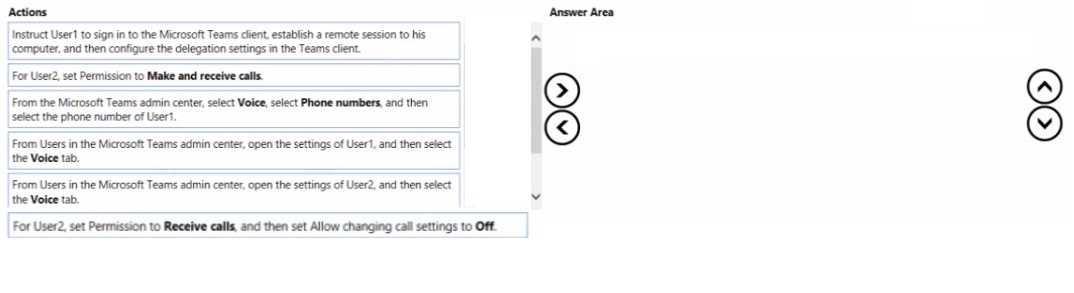
Right, it's D (User1 in TAC), then F (User2 receive-only and no change rights), then A (User1 finishes in Teams client). Starts with admin config, limits User2's permissions, then minimal client disruption at the end. I think this matches least privilege and workflow. Anyone disagree?
D then F then A is correct. Start in TAC on User1's Voice tab, set User2 just to 'Receive calls' with no ability to change settings, then have User1 finish it in the Teams client. Pretty sure this order keeps it low impact and secure, but let me know if I'm missing something.
Yeah, looks like it should be: User1 Voice tab in TAC first, then set User2 to Receive calls only with no change rights, then have User1 sign in and set the delegate. Doing the admin parts first keeps things smooth for User1. I think that's the best order but not 100 percent sure if client-side is strictly always needed now.
Really clear question, nice breakdown! I went with: Step 1: From Users in TAC open User1's Voice tab, Step 2: For User2 set Receive calls and block changing call settings, Step 3: Instruct User1 to sign in and configure delegate. I think this lines up since we want least privilege for User2 and minimal impact for User1 (so do admin steps first). Not totally sure if the client step is always needed but it felt safest here. Agree?
- Step 1: From Users in the Microsoft Teams admin center, open the settings of User1, and then select the Voice tab.
- Step 2: For User2, set Permission to Receive calls, and then set Allow changing call settings to Off
- Step 3: Instruct User1 to sign in to the Microsoft Teams client, establish a remote session to his computer, and then configure the delegation settings in the Teams client.