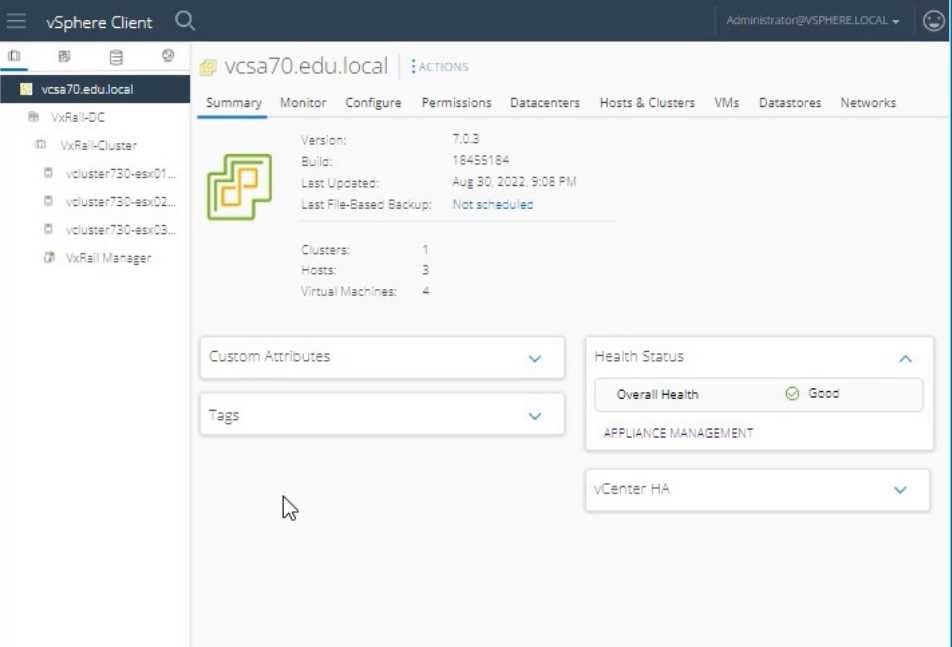
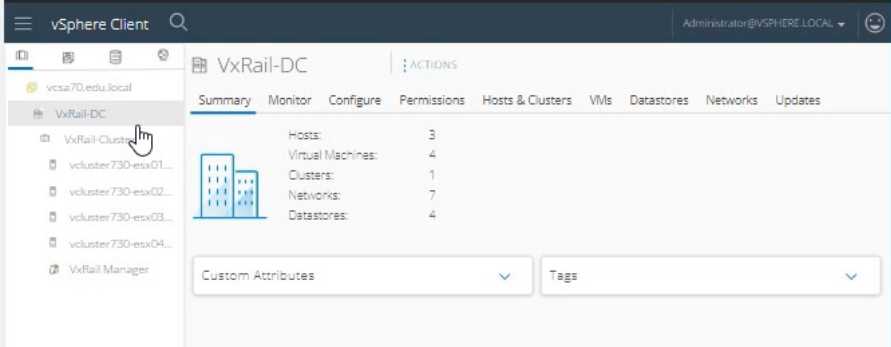
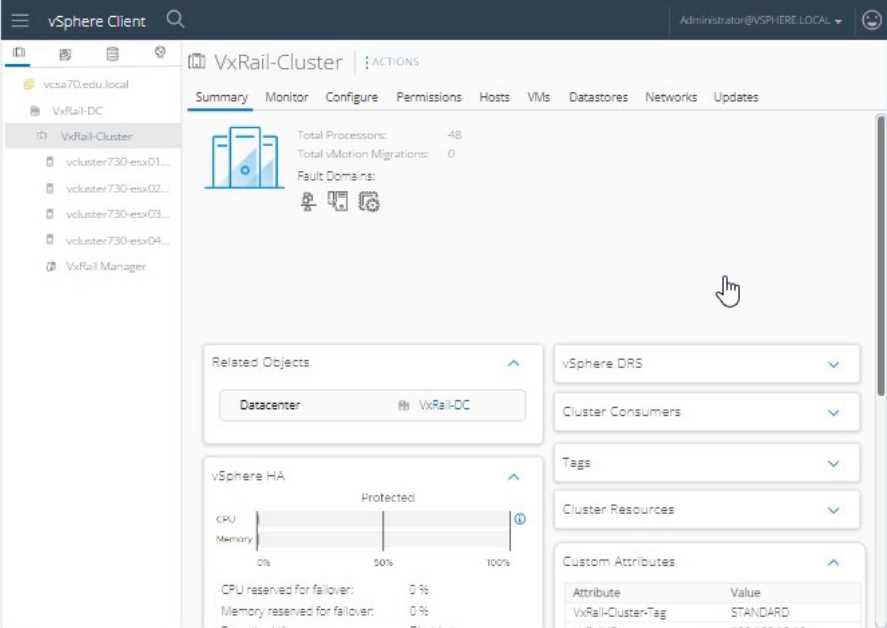
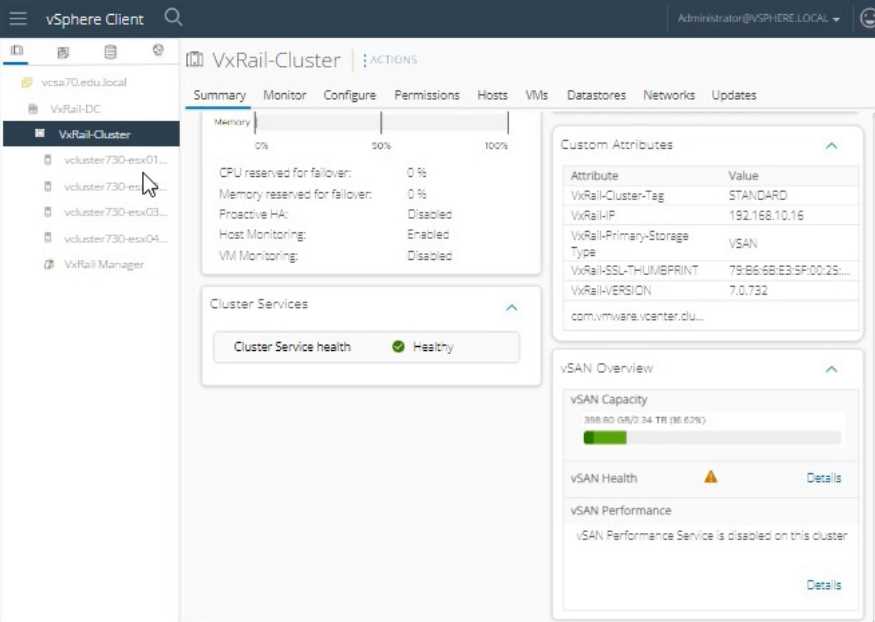
below.
Explanation:
To enable the system LED on vcluster730-esx03.edu.local for identification in the physical rack, follow
these steps:
Log in to vSphere Client:
Open the vSphere Client.
Enter the username: [email protected].
Enter the password: VMw@r3!123.
Click Login.
Navigate to the Host:
In the vSphere Client interface, navigate to the Hosts and Clusters view.
Expand the VxRail-DC and then the VxRail-Cluster.
Select the host named vcluster730-esx03.edu.local.
Access Host Actions:
Right-click on vcluster730-esx03.edu.local.
From the context menu, select Actions.
Enable System LED:
In the Actions menu, locate and select Enable LED or Turn On Locator LED (the exact wording might
vary).
Confirm the action if prompted.
Verify LED Activation:
Check the physical rack to ensure that the system LED on vcluster730-esx03.edu.local is enabled and
the node is easily identifiable.
Reference:
VMware vSphere Host Management Guide: vSphere Host Management
=========================
Note: The exact steps to enable the LED might vary slightly based on the version of vSphere Client
you are using, but the general process involves selecting the host and using the Actions menu to
enable the system LED.