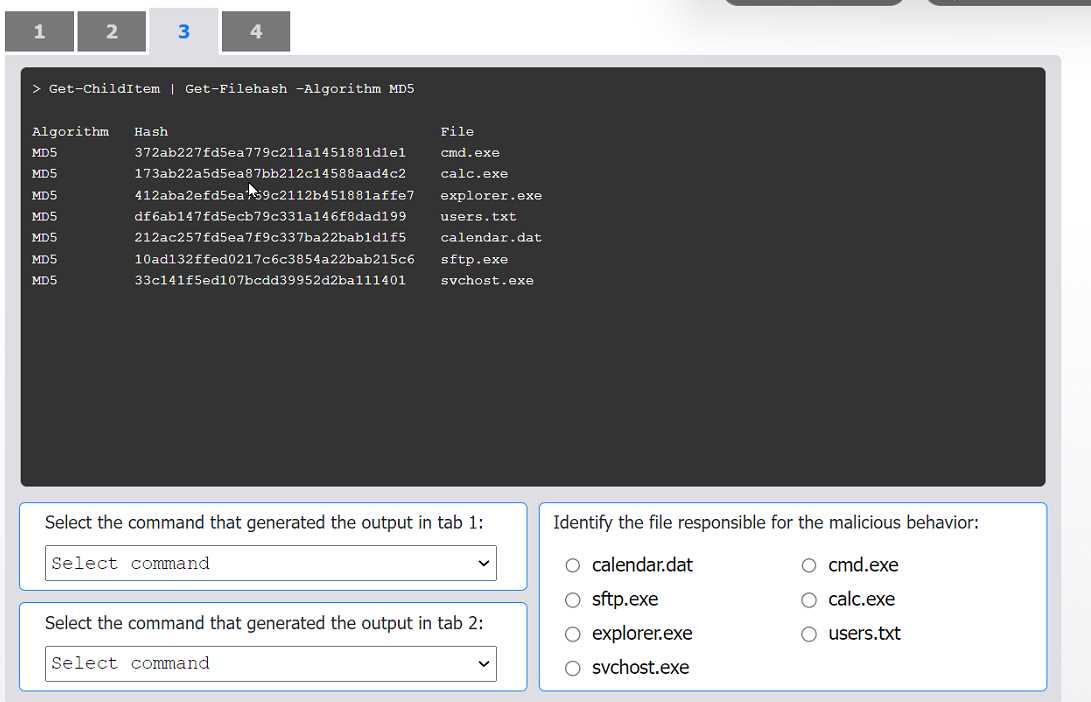
The output in Tab 1 displays a list of files and their corresponding MD5 hash values. In Windows PowerShell, the Get-ChildItem cmdlet gets the items in a specified location (in this case, the current directory), and the pipe | sends that output to the Get-Filehash cmdlet. The -Algorithm MD5 parameter specifies that the MD5 hashing algorithm should be used. The resulting output format perfectly matches what is shown in Tab 1.
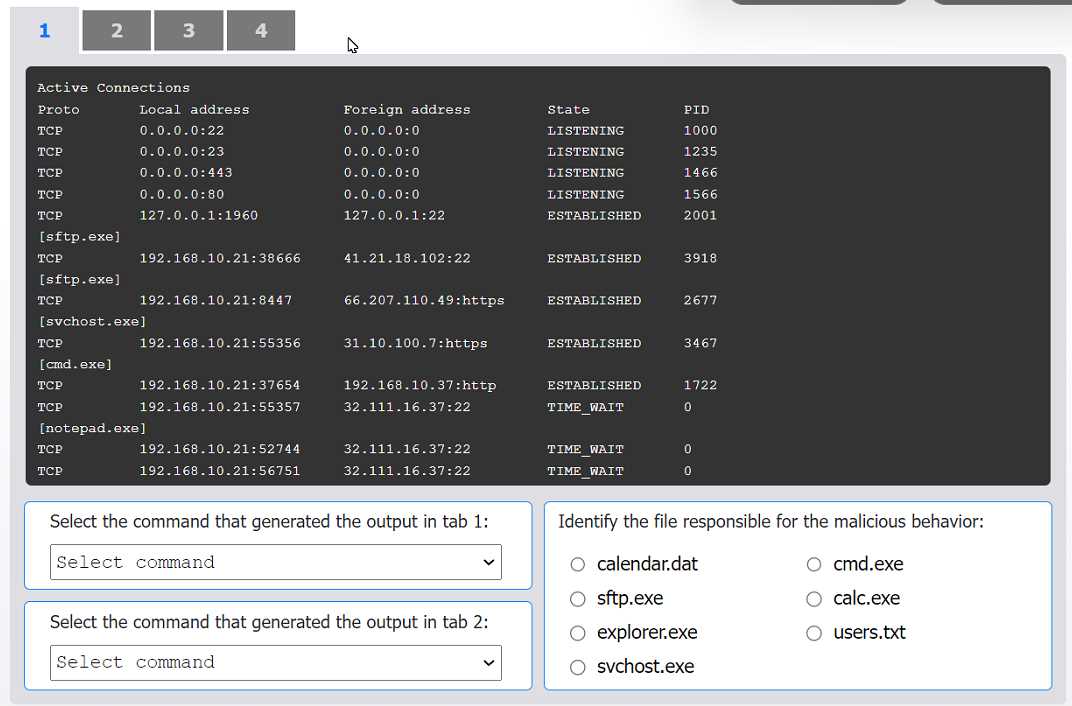
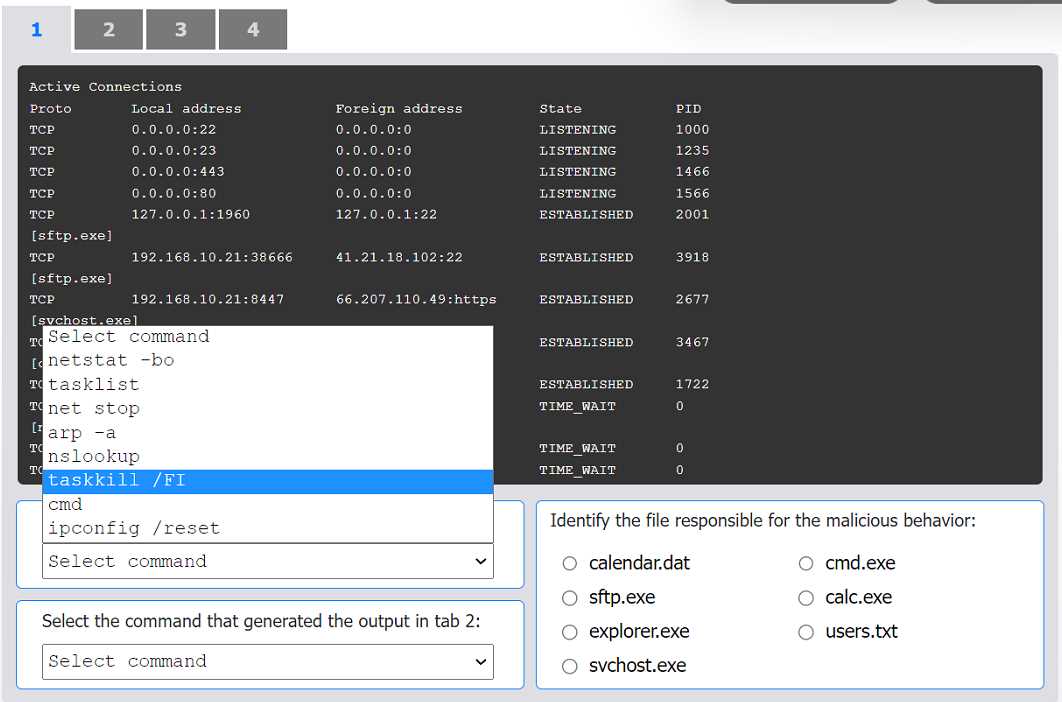
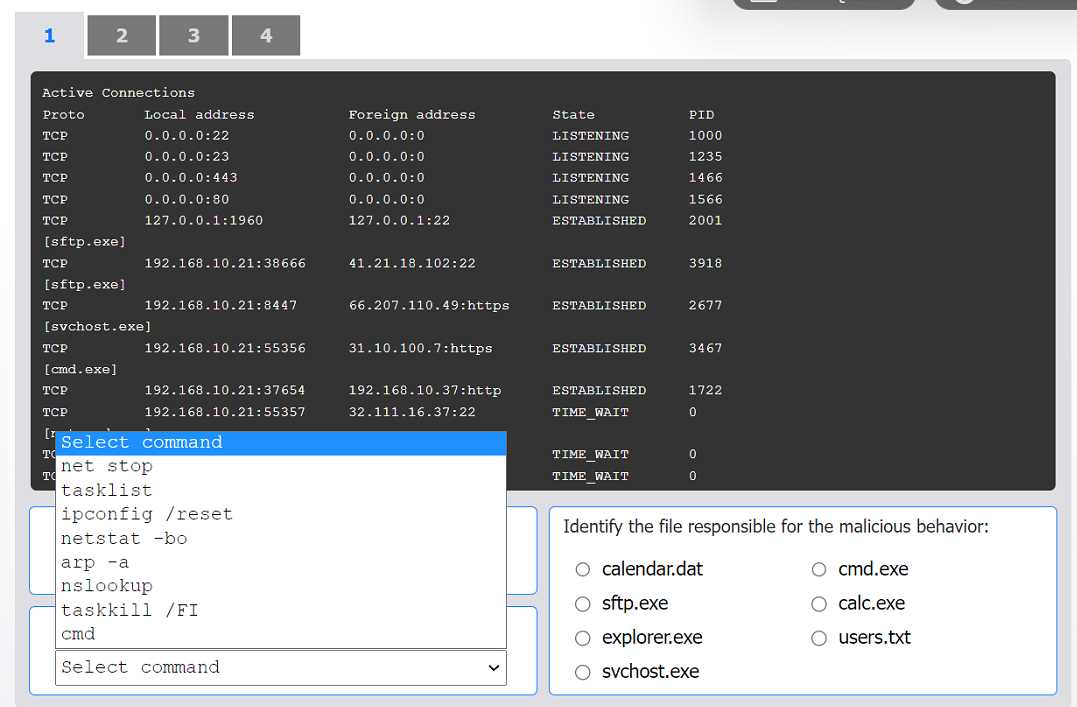
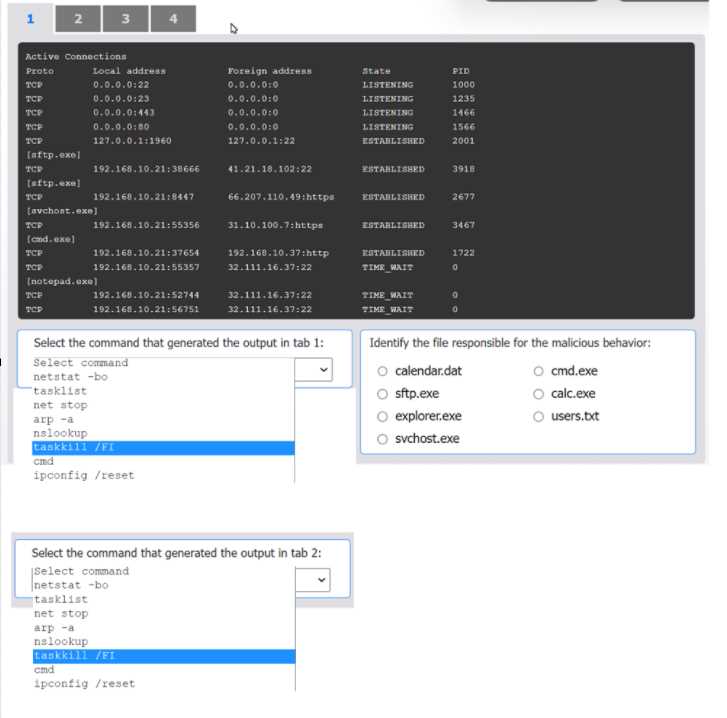
The output in Tab 2 shows active TCP connections, including local and foreign addresses, state, and the process ID (PID). Critically, it also lists the executable file name (e.g., [sftp.exe]) below each relevant connection. The netstat command is used to display network connections. The -b switch displays the executable involved in creating each connection, and the -o switch displays the owning process ID. The combination netstat -bo produces the exact format seen in Tab 2.
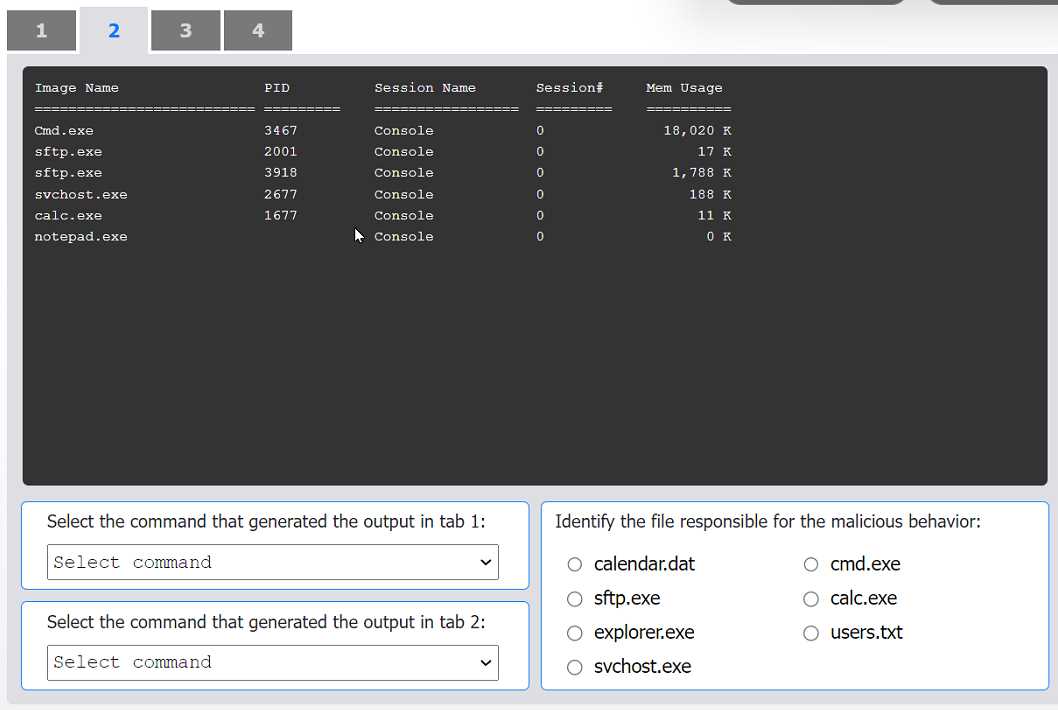
To identify the malicious file, we must correlate information from all tabs.
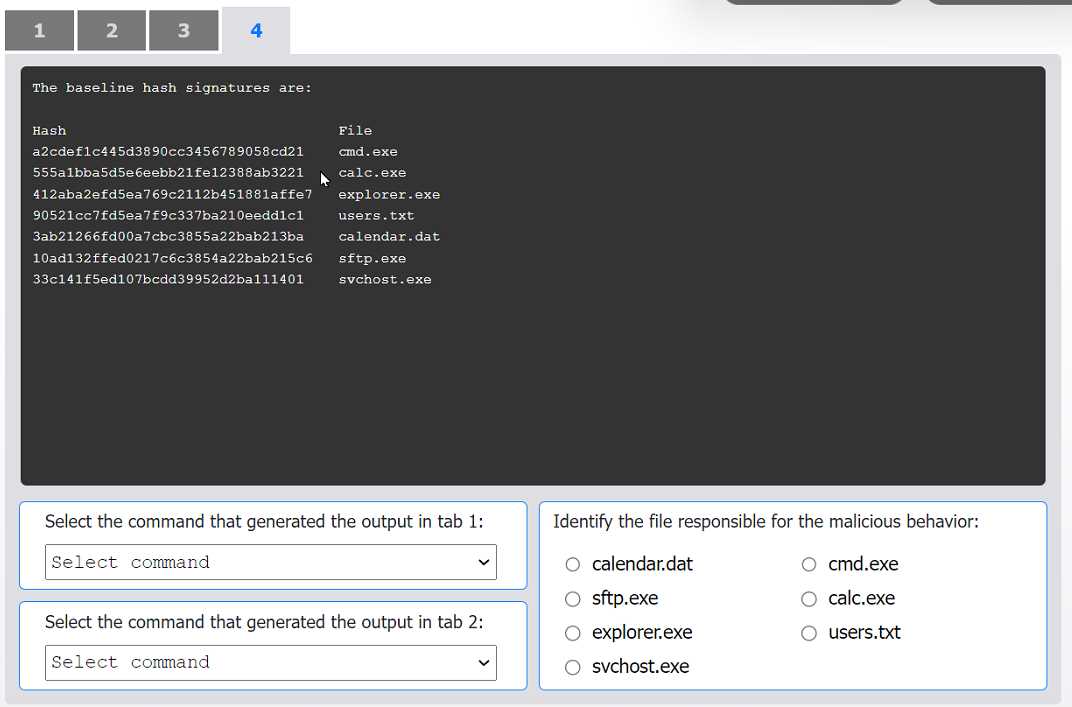
File Integrity Check: First, compare the current file hashes from Tab 1 with the known-good baseline hashes from Tab 4. The MD5 hash for cmd.exe in Tab 1 (372ab...) does not match the baseline hash in Tab 4 (a2cde...). This indicates the cmd.exe file has been modified or replaced.
Network Activity Analysis: Next, examine the network connections in Tab 2. The modified cmd.exe file is shown to have an established outbound connection to 192.168.10.37:http. The Windows Command Prompt (cmd.exe) should not be making persistent outbound network connections, making this behavior highly suspicious and indicative of data exfiltration or command-and-control (C2) communication.
The combination of a failed integrity check (mismatched hash) and suspicious network activity makes cmd.exe the file responsible for the malicious behavior.