Correct Answer:
THE FOLLOWING STEPS MUST BE PERFORMED IN THE APPLICATION TO COMPLETE THE SIMULATION:
1. NAVIGATE TO THE SETUP AND MAINTENANCE WORK AREA.
2. SELECT THE FINANCIALS OFFERING AND SEARCH FOR THE TASK MANAGE CHART OF ACCOUNTS STRUCTURES.
3. CLICK THE CREATE ICON + TO ADD A NEW STRUCTURE.
4. ENTER THE FOLLOWING DETAILS FOR THE STRUCTURE:
STRUCTURE CODE: 07ACMECOASTRUCTURE
NAME: 07 ACME CHART OF ACCOUNTS STRUCTURE
DELIMITER: - OR ANOTHER CHARACTER
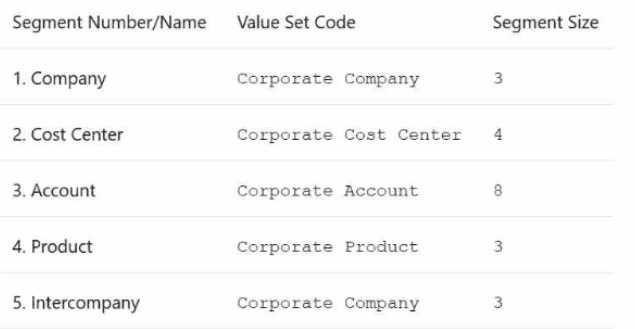
5. IN THE SEGMENTS SECTION, CLICK THE CREATE ICON + TO ADD THE FIVE REQUIRED SEGMENTS IN ORDER:
SEGMENT 1 COMPANY: SEQUENCE 1, NAME COMPANY, API NAME COMPANY, PROMPT COMPANY, SHORT PROMPT COMPANY, DISPLAY WIDTH 25. ASSIGN AN APPROPRIATE VALUE SET. IN THE SEGMENT LABELS SECTION, ADD THE PRIMARY BALANCING SEGMENT LABEL.
SEGMENT 2 COST CENTER: SEQUENCE 2, NAME COST CENTER, API NAME COSTCENTER, PROMPT COST CENTER, SHORT PROMPT COST CTR, DISPLAY WIDTH 25. ASSIGN AN APPROPRIATE VALUE SET. ADD THE COST CENTER SEGMENT LABEL.
SEGMENT 3 ACCOUNT: SEQUENCE 3, NAME ACCOUNT, API NAME ACCOUNT, PROMPT ACCOUNT, SHORT PROMPT ACCOUNT, DISPLAY WIDTH 25. ASSIGN AN APPROPRIATE VALUE SET. ADD THE NATURAL ACCOUNT SEGMENT LABEL.
SEGMENT 4 PRODUCT: SEQUENCE 4, NAME PRODUCT, API NAME PRODUCT, PROMPT PRODUCT, SHORT PROMPT PRODUCT, DISPLAY WIDTH 25. ASSIGN AN APPROPRIATE VALUE SET. NO SPECIFIC LABEL IS REQUIRED BY THE SCENARIO.
SEGMENT 5 INTERCOMPANY: SEQUENCE 5, NAME INTERCOMPANY, API NAME INTERCOMPANY, PROMPT INTERCOMPANY, SHORT PROMPT INTERCO, DISPLAY WIDTH 25. ASSIGN AN APPROPRIATE VALUE SET. ADD THE INTERCOMPANY SEGMENT LABEL.
6. CLICK SAVE AND CLOSE.
7. NAVIGATE TO THE MANAGE CHART OF ACCOUNTS STRUCTURE INSTANCES TASK.
8. CLICK THE CREATE ICON + TO ADD A NEW INSTANCE.
9. SELECT THE STRUCTURE CREATED PREVIOUSLY 07ACMECOASTRUCTURE.
10. ENTER THE FOLLOWING DETAILS FOR THE INSTANCE:
STRUCTURE INSTANCE CODE: 07ACMECOAINSTANCE
NAME: 07 ACME CHART OF ACCOUNTS INSTANCE
DYNAMIC COMBINATION CREATION ALLOWED: CHECKED
SHORTHAND ALIAS ENABLED: UNCHECKED
11. CLICK SAVE AND CLOSE.
Explanation
The procedure involves first defining the Chart of Accounts (COA) structure, which acts as a template for the key flexfield. This includes defining each segment (Company, Cost Center, etc.) and assigning critical segment labels like Primary Balancing, Natural Account, and Cost Center, which control the behavior of the General Ledger. Subsequently, a structure instance is created. The instance is the specific implementation of the structure that will be used by a ledger. Key settings on the instance, such as enabling dynamic combination creation, are configured as required by the scenario.
References
Oracle Fusion Cloud Financials. (2024). Implementing Enterprise Structures and General Ledger. Chapter 4: Create Chart of Accounts. Section: "Chart of Accounts Structures: Critical Choices" and "Chart of Accounts Structure Instances: Critical Choices".
Oracle Fusion Cloud Financials. (2024). Using General Ledger. Chapter 2: Accounting Setup. Section: "Overview of Chart of Accounts".

 Note:
· Prefix all your setups with 07, where 07 is your candidate ID
· There is one balancing segment.
· Choose the appropriate segment labels.
. For the purpose of this test there is no need to deploy the flexfield.
. Valid code combinations should be added to the Code Combination table automatically.
· Shorthand aliases will not be implemented.
. Accept the defaults for the instance segments.
Note:
· Prefix all your setups with 07, where 07 is your candidate ID
· There is one balancing segment.
· Choose the appropriate segment labels.
. For the purpose of this test there is no need to deploy the flexfield.
. Valid code combinations should be added to the Code Combination table automatically.
· Shorthand aliases will not be implemented.
. Accept the defaults for the instance segments.