Free Apple-Device-Support Practice Test Questions and Answers (2026) | Cert Empire Practice Questions
Free preview: 20 questions.
Apple APPLE DEVICE SUPPORT
A and D are the ones I'd pick too. Force quitting is a classic fix for frozen apps, and deleting/reinstalling is Apple's own support advice if that doesn't work. The other options just aren't things you can really do on iOS for this issue. Pretty sure that's it but open to corrections.
What should you use to verify that your Mac has successfully connected to the microphone?I get the idea behind picking B since VoiceOver Utility shows audio devices, but isn’t that more a list of what macOS recognizes after hardware detection? If the mic doesn't even show up in System Information under USB, it won’t appear as an audio input either, right? Maybe I’m missing something technical here?
defaults write is what's used to actually change a preference. A just reads it, so wouldn't update anything. Pretty sure this is a common trap on these types of macOS questions.Had something like this in a mock. It's definitely C since defaults write is the only one that actually changes Finder settings, not just checks them. A just reads the value, doesn't set anything. Agree?
I don’t think B fits since WPA/WPA2 is a common trap for older compatibility, but Apple clearly leans on WPA2/WPA3 Transitional (C) for security in their documentation. Surprised D is even there, WEP shouldn’t be safe at all anymore!
Health data for sure, but I thought Wallet items also needed encryption on Mac backups. Saved passwords maybe, but not as confident there. Anyone else see docs saying E can't be backed up this way?
Pretty sure it's C and D, since Health data and saved passwords are only backed up when the backup is encrypted on a Mac. Device passcode and Face ID are never included-easy to get tripped up by those options.
Yeah, D makes sense here since only the Apple Watch can auto-unlock your Mac and approve app authentication requests natively. iPhone and iPad can't do that directly. Pretty sure about this but someone correct me if I missed a recent change.


If you go to Settings, then General, then About, that's where iPhone usually checks for carrier settings updates. Sometimes you'll get a popup if an update is available. Pretty sure that's the process unless something changed in recent iOS versions.
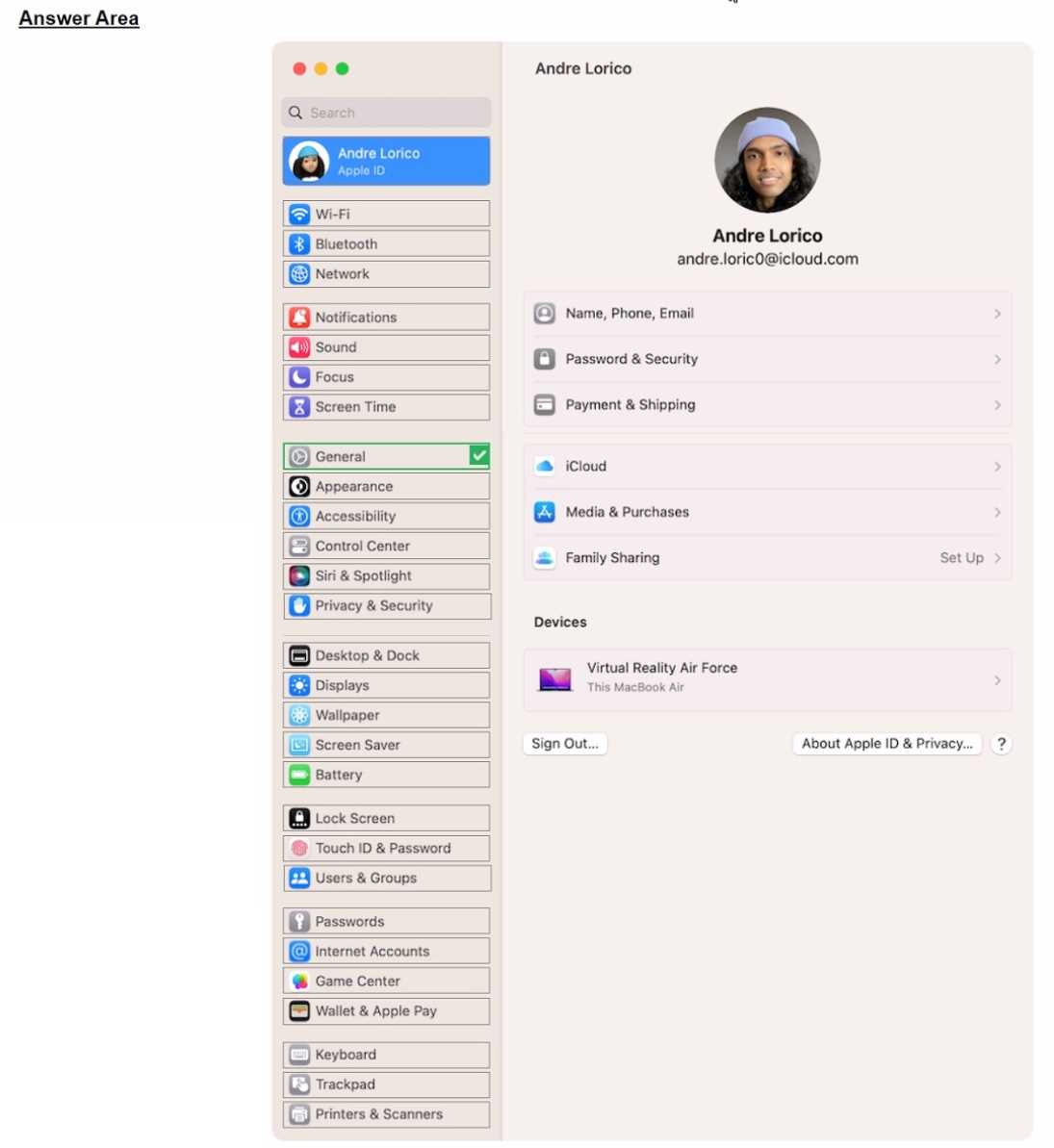
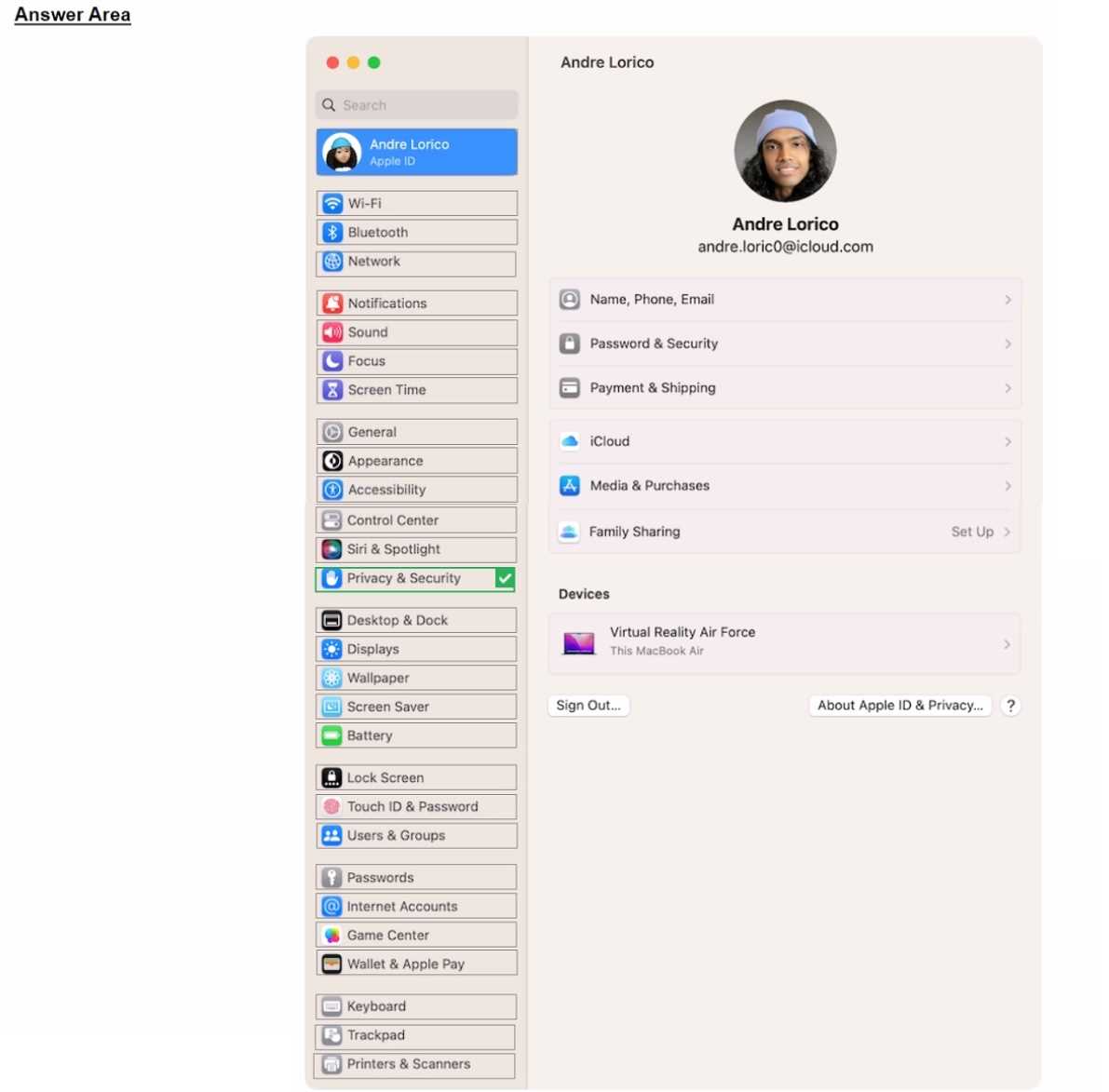
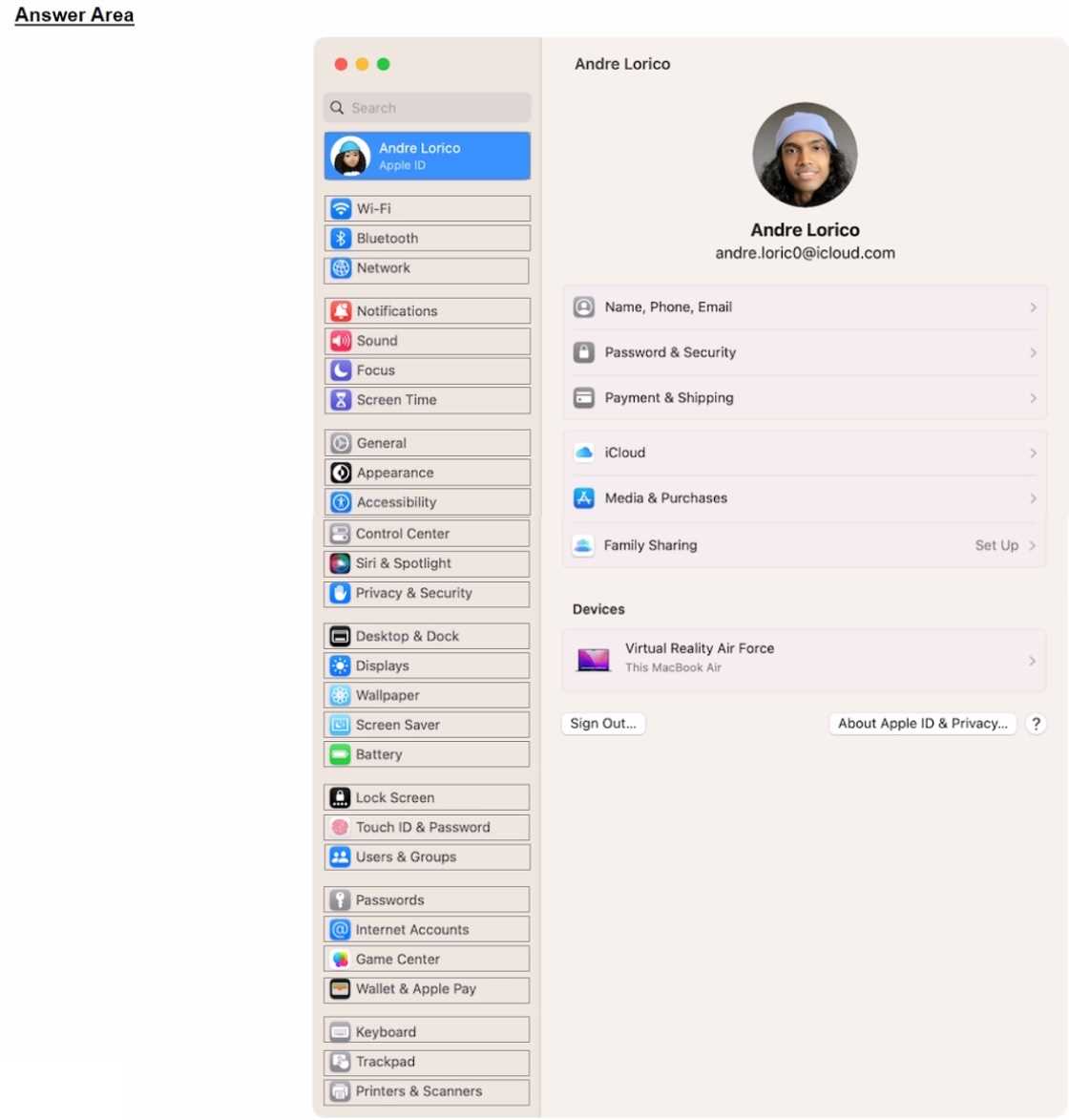
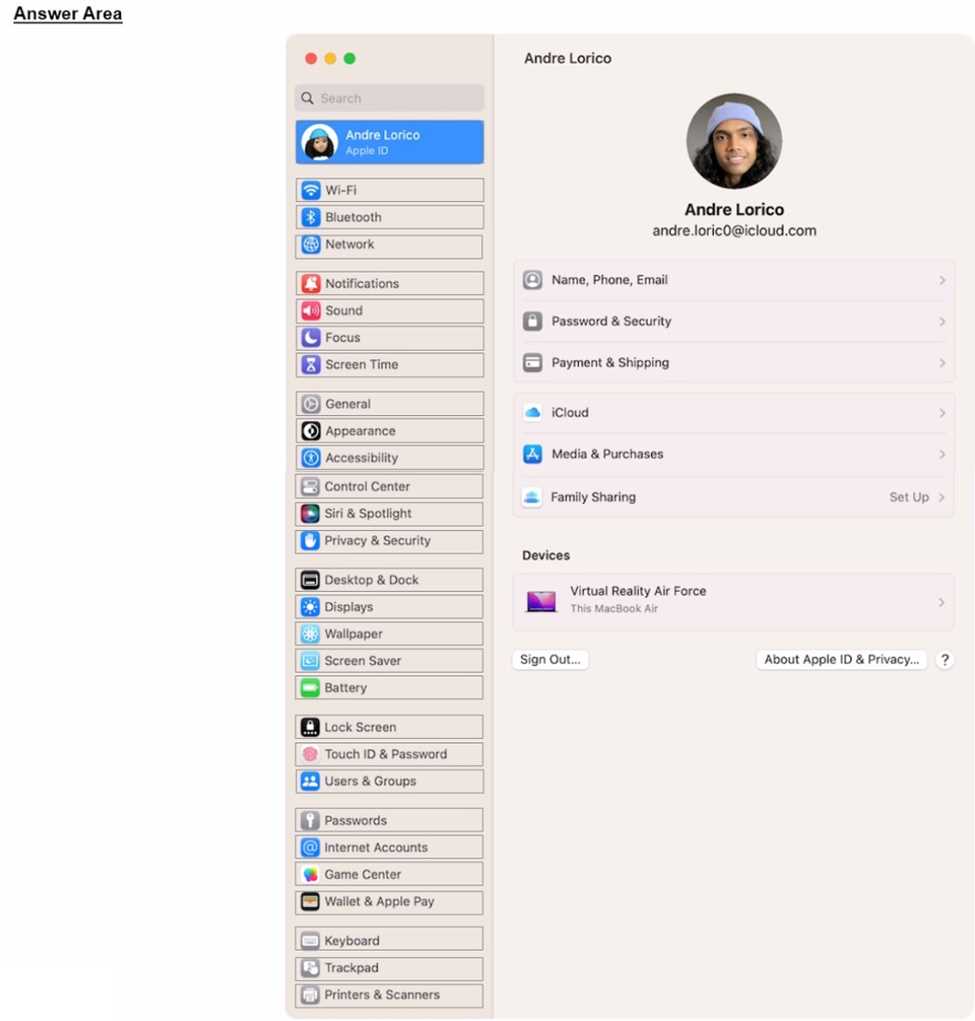
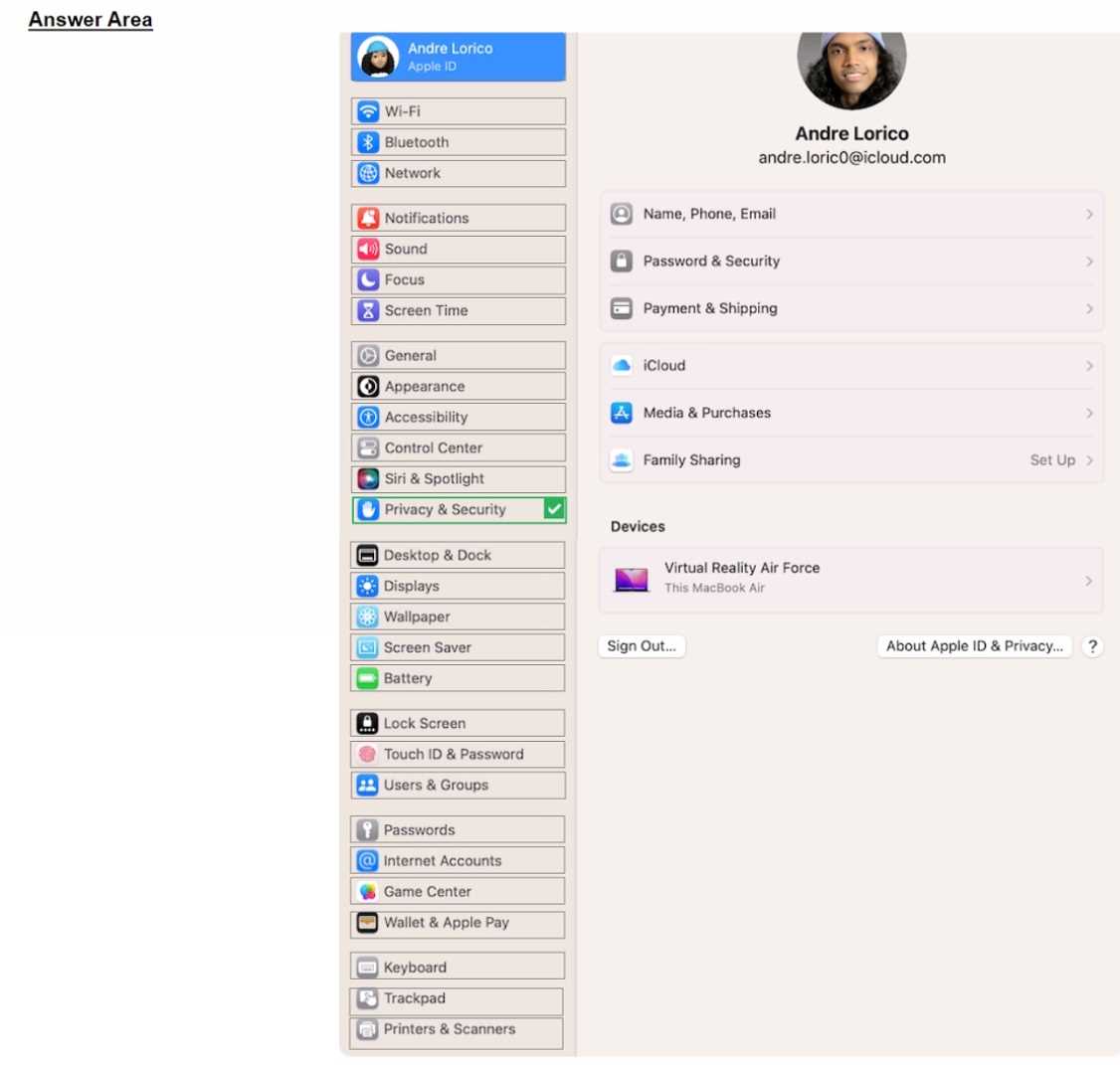
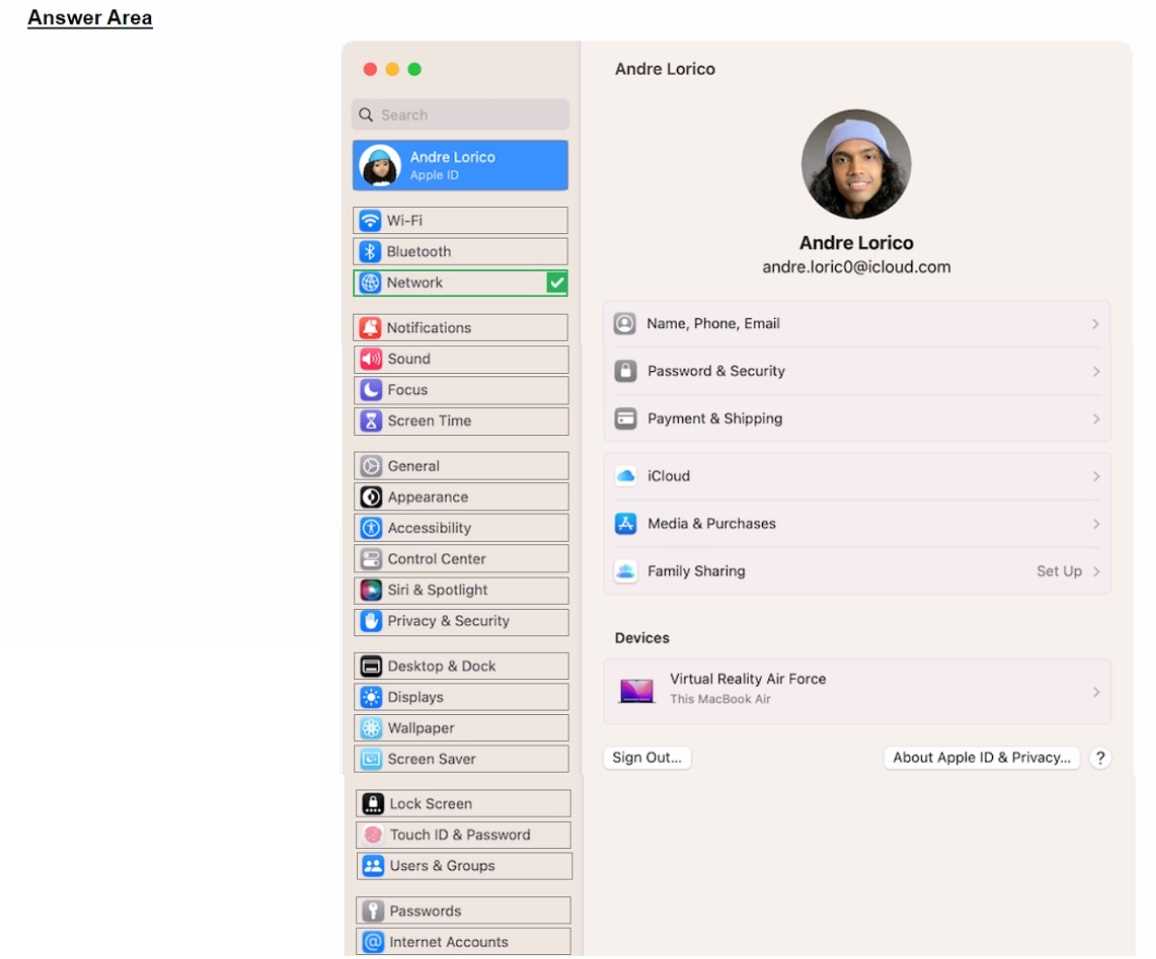
HOTSPOT Select the setting in the sidebar that you should use to turn on Find My on your Mac.
.

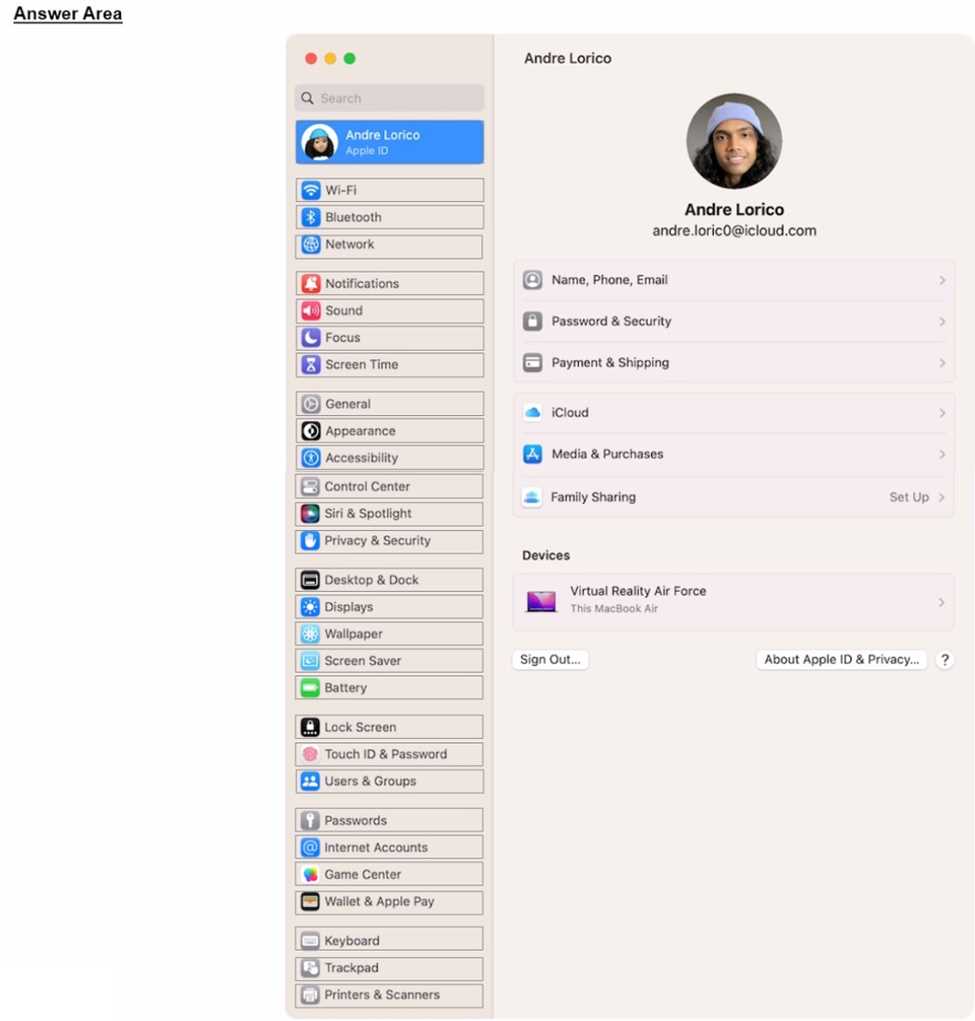
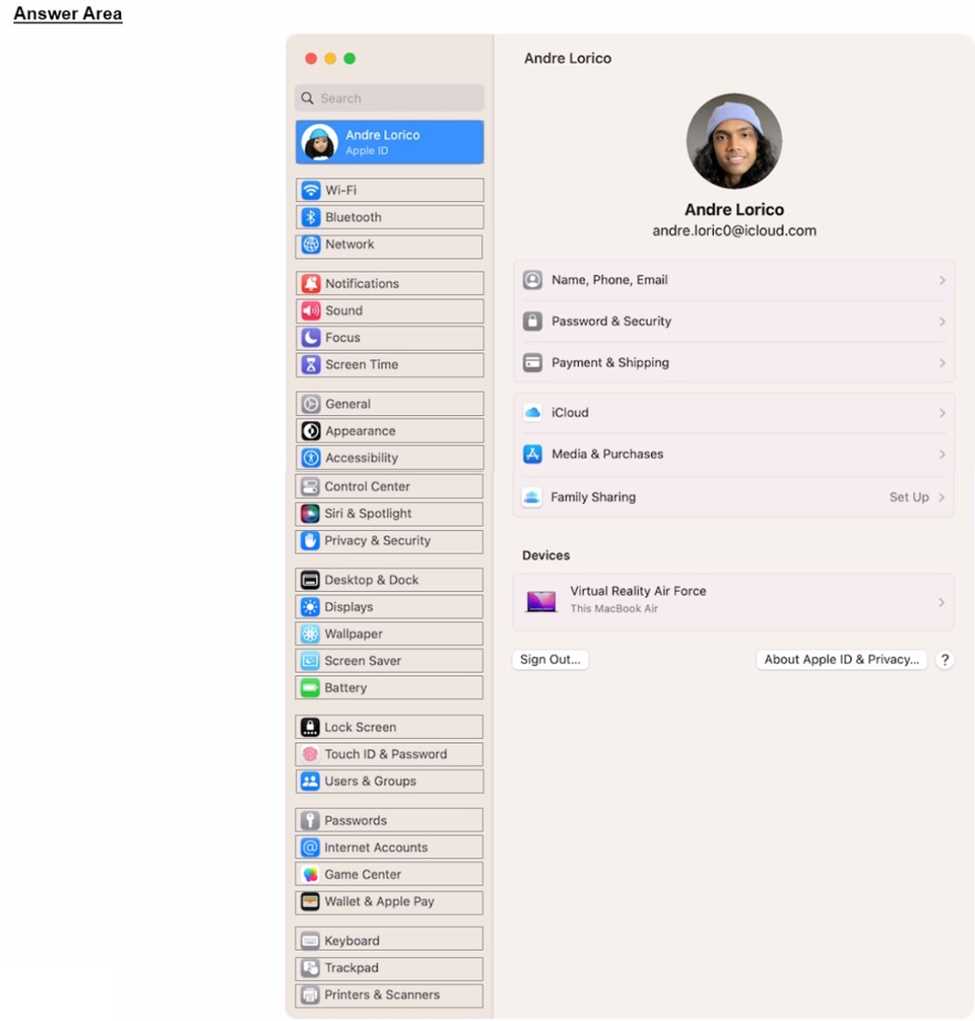
Privacy & Security is the right pick here. That’s where Lockdown Mode sits in recent macOS versions, just scroll down inside that section. If the screenshot shows the System Settings sidebar, it’s almost always Privacy & Security for features like this. Could be confusing if you’re thinking of Control Center or an older OS, but current systems have it there. Pretty sure that’s what they want.
Depends if they mean system settings for iOS or macOS since the sidebar layout's a bit different. If it’s asking for the most secure setting, “Privacy & Security” is right. But if the screenshot’s from older macOS versions, would that change things?
Had something like this in a mock and it was definitely Privacy & Security. Lockdown Mode lives under there now on recent macOS. Might change if it's a really old version, but for most up-to-date systems, that's the spot.


It depends, does the question specify if it's Ventura or earlier? Newer macOS moved VPN to System Settings, but older versions use System Preferences. That would change the answer.

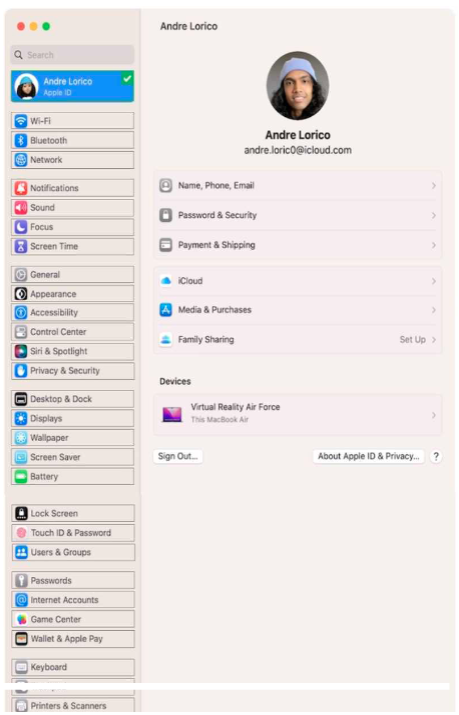
I'm pretty sure you go through General to access a lot of core system settings, including things like disk encryption. Unless they've moved it in the latest update, I'd pick General here. Could be wrong if Apple changed the layout lately. Anyone else seeing it this way?

Yeah, it's Network. That's the section where you toggle iCloud Drive on or off for your Mac, at least in System Preferences. Pretty sure that's what Andre needs here.

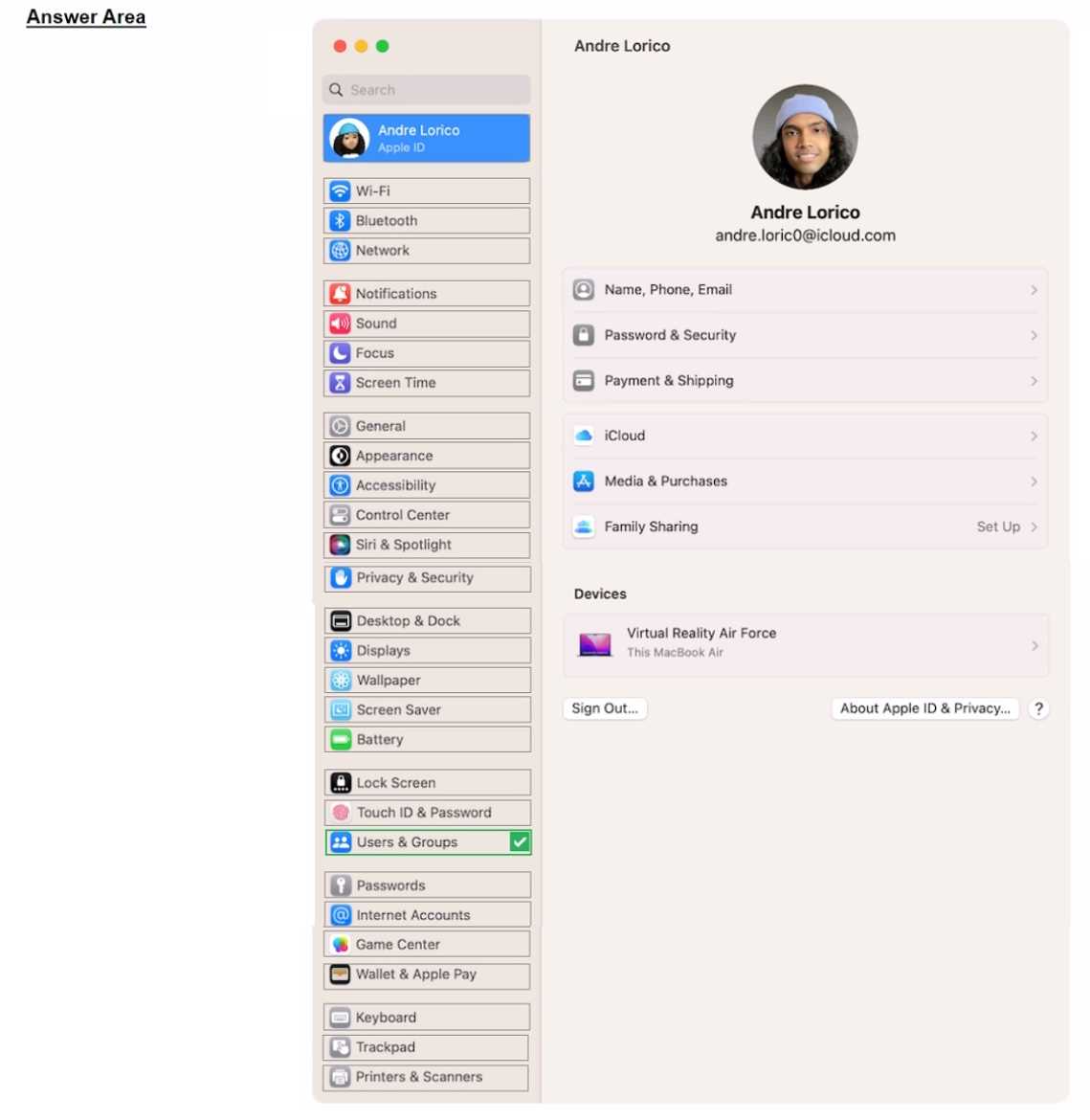
Easy one, "Users & Groups" is where you delete user accounts on a Mac. That matches what's on official support docs and practice tests I've seen.
I recommend reviewing the official Apple user guide and running through the sidebar settings in a Mac lab environment if you can.