https://kxbjsyuhceggsyvxdkof.supabase.co/storage/v1/object/public/file-images/Tableau_TDA-C01/page_72_img_2.jpg
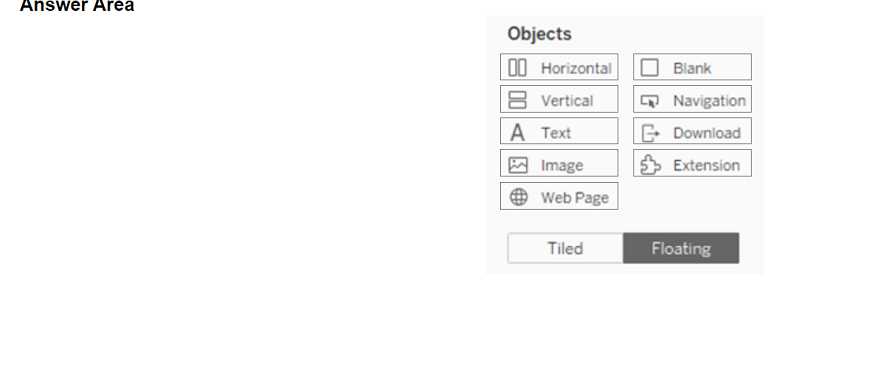
To add two sheets to the dashboard that support the Show/Hide button, you can add them to either
a horizontal or a vertical container. A container is an object that can hold one or more sheets or other
objects and allow you to arrange them in a layout. A Show/Hide button is a feature that lets you hide
or show a container and its contents on the dashboard. You can add a Show/Hide button to any
container, whether it is tiled or floating, by using the drop-down menu of the container and selecting
“Add Show/Hide Button.” You can also customize the appearance and behavior of the button.
To add a horizontal or a vertical container to the dashboard, you can drag them from the Objects
pane to the dashboard. A horizontal container will arrange the sheets or objects horizontally, while a
vertical container will arrange them vertically. You can then drag the sheets you want to add from the
Sheets pane to the container. You can resize and reorder the sheets or objects within the container by
using the handles and arrows.
The other objects in the Answer Area, such as text, image, web page, blank, navigation, download,
and extension, do not support the Show/Hide button. They are either static elements that cannot
hold other objects, or dynamic elements that require user interaction or external sources. You can
add them to the dashboard as well, but they will not have the same functionality as a container with
a Show/Hide button.
Reference:
Add Show/Hide Buttons - Tableau
Layout Containers - Tableau