
DRAG DROP You have a Microsoft 365 E5 subscription that has data loss prevention (DLP) implemented. You need to create a custom sensitive info type. The solution must meet the following requirements: ● Match product serial numbers that contain a 10-character alphanumeric string. ● Ensure that the abbreviation of SN appears within six characters of each product serial number. ● Exclude a test serial number of 1111111111 from a match. Which pattern settings should you configure for each requirement? To answer, drag the appropriate settings to the correct requirements. Each setting may be used once, more than once, or not at all. You may need to drag the split bar between panes or scroll to view content. NOTE: Each correct selection is worth one point. 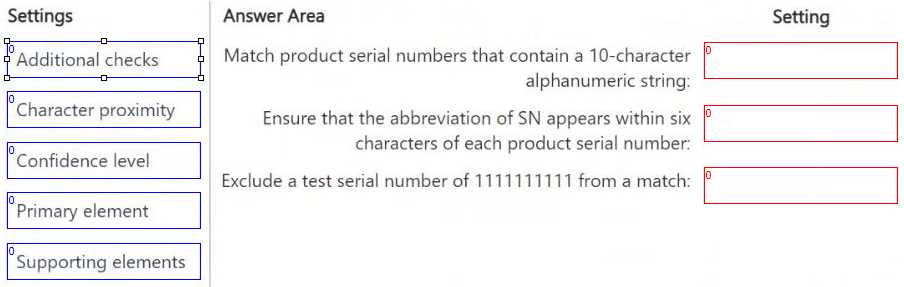
Q: 3
Drag & Drop
Discussion
Primary element for matching the 10-char alphanumeric, character proximity to handle SN within six characters, and additional checks to exclude 1111111111. Supporting elements might look tempting for exclusion, but additional checks is the only one that does this in DLP custom SITs. Unless MS changes syntax, this is safest. Disagree?
Yeah, I've seen this pattern too: Primary element maps to the alphanumeric match, character proximity is how you set 'SN' near the serial, and additional checks is where you exclude 1111111111. Pretty sure that's right but happy for other views.
Had something like this in a mock: primary element for the serial, character proximity for SN, additional checks to exclude 1111111111.
Primary element for the serial, character proximity for SN, additional checks for excluding 1111111111. Saw a similar mapping on a practice exam and it matched this setup.
Had something like this in a mock. Primary element for serial, character proximity for SN, additional checks to exclude that test number.
Not quite, Primary element does the pattern for serials, character proximity is for 'SN' within 6 chars, and additional checks skips that test number. Saw similar in a practice bank, trick is not to pick supporting elements here.
Primary element → 10-char alphanumeric, character proximity → SN within 6, additional checks → exclude 1111111111. Supporting elements is tempting but it's meant for increasing confidence, not exclusions. Pretty sure this mapping matches actual DLP custom SIT logic. Disagree if you think supporting elements fits better here.
Primary element = serial number pattern, character proximity = SN within 6, additional checks = exclude 1111111111. Supporting elements is a trap on this one, seen folks get tripped up by that.
Primary element → 10-char alphanumeric, character proximity → SN within 6, additional checks → exclude 1111111111
Pretty sure this lines up with some official guide examples: Primary element for serial, character proximity for SN, supporting elements to exclude the test number. Haven't seen much on additional checks in practice sets. Anyone seen this phrasing on labs?
Be respectful. No spam.
Question 3 of 25
