The scenario involves an HPE Aruba Networking Instant AP (IAP) cluster with a WLAN configured for
WPA3-Enterprise security, using HPE Aruba Networking ClearPass Policy Manager (CPPM) as the
authentication server. CPPM is set to require EAP-TLS for authentication. A Windows 10 client
attempts to connect but fails, and the CPPM Access Tracker shows an error: "Client does not support
configured EAP methods," with the error code 9015 under the RADIUS protocol category.
EAP-TLS (Extensible Authentication Protocol - Transport Layer Security) is a certificate-based
authentication method that requires both the client (supplicant) and the server (CPPM) to present
valid certificates during the authentication process. The error message indicates that the client does
not support the EAP method configured on CPPM (EAP-TLS), meaning the client is either not
configured to use EAP-TLS or lacks the necessary components to perform EAP-TLS authentication.
Option B, "Whether the client has a valid certificate installed on it to let it support EAP-TLS," is
correct. EAP-TLS requires the client to have a valid client certificate issued by a trusted Certificate
Authority (CA) that CPPM trusts. If the Windows 10 client does not have a client certificate installed,
or if the certificate is invalid (e.g., expired, not trusted by CPPM, or missing), the client cannot
negotiate EAP-TLS, resulting in the error seen in CPPM. This is a common issue in EAP-TLS
deployments, and checking the client’s certificate is a critical troubleshooting step.
Option A, "Whether EAP-TLS is enabled in the AAA Profile settings for the WLAN on the IAP cluster,"
is incorrect because the error indicates that CPPM received the authentication request and rejected
it due to the client’s inability to support EAP-TLS. This suggests that the IAP cluster is correctly
configured to use EAP-TLS (as the request reached CPPM with EAP-TLS as the method). The AAA
profile on the IAP cluster is likely already set to use EAP-TLS, or the error would be different (e.g., a
connectivity or configuration mismatch issue).
Option C, "Whether EAP-TLS is enabled in the SSID Profile settings for the WLAN on the IAP cluster,"
is incorrect for a similar reason. The SSID profile on the IAP cluster defines the security settings (e.g.,
WPA3-Enterprise), and the AAA profile specifies the EAP method. Since the authentication request
reached CPPM with EAP-TLS, the IAP cluster is correctly configured to use EAP-TLS.
Option D, "Whether the client has a third-party 802.1X supplicant, as Windows 10 does not support
EAP-TLS," is incorrect because Windows 10 natively supports EAP-TLS. The built-in Windows 10
802.1X supplicant (Windows WLAN AutoConfig service) supports EAP-TLS, provided a valid client
certificate is installed. A third-party supplicant is not required.
The HPE Aruba Networking ClearPass Policy Manager 6.11 User Guide states:
"EAP-TLS requires both the client and the server to present a valid certificate during the
authentication process. If the client does not have a valid certificate installed, or if the certificate is
not trusted by ClearPass (e.g., the issuing CA is not in the ClearPass trust list), the authentication will
fail with an error such as ‘Client does not support configured EAP methods’ (Error Code 9015). To
resolve this, ensure that the client has a valid certificate installed and that the certificate’s issuing CA
is trusted by ClearPass." (Page 295, EAP-TLS Troubleshooting Section)
Additionally, the HPE Aruba Networking Instant 8.11 User Guide notes:
"For WPA3-Enterprise with EAP-TLS, the client must have a valid client certificate installed to
authenticate successfully. If the client lacks a certificate or the certificate is invalid, the
authentication will fail, and ClearPass will log an error indicating that the client does not support the
configured EAP method." (Page 189, WPA3-Enterprise Configuration Section)
:
HPE Aruba Networking ClearPass Policy Manager 6.11 User Guide, EAP-TLS Troubleshooting Section,
Page 295.
HPE Aruba Networking Instant 8.11 User Guide, WPA3-Enterprise Configuration Section, Page 189.
===========

 A company has an HPE Aruba Networking Instant AP cluster. A Windows 10 client is attempting to
connect to a WLAN that enforces WPA3-Enterprise with authentication to HPE Aruba Networking
ClearPass Policy Manager (CPPM). CPPM is configured to require EAP-TLS. The client authentication
fails. In the record for this client's authentication attempt on CPPM, you see this alert.
What is one thing that you check to resolve this issue?
A company has an HPE Aruba Networking Instant AP cluster. A Windows 10 client is attempting to
connect to a WLAN that enforces WPA3-Enterprise with authentication to HPE Aruba Networking
ClearPass Policy Manager (CPPM). CPPM is configured to require EAP-TLS. The client authentication
fails. In the record for this client's authentication attempt on CPPM, you see this alert.
What is one thing that you check to resolve this issue?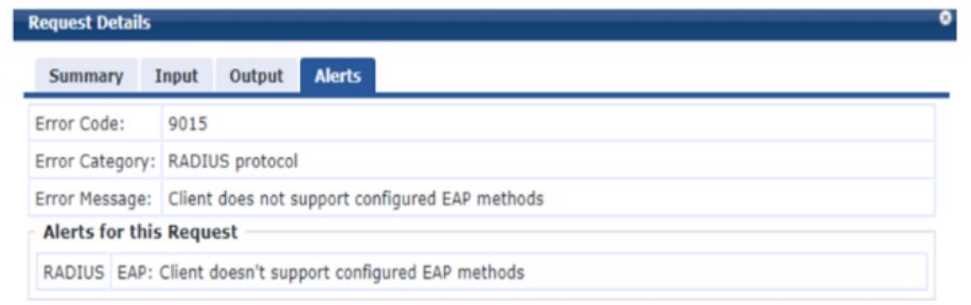 A company has an HPE Aruba Networking Instant AP cluster. A Windows 10 client is attempting to
connect to a WLAN that enforces WPA3-Enterprise with authentication to HPE Aruba Networking
ClearPass Policy Manager (CPPM). CPPM is configured to require EAP-TLS. The client authentication
fails. In the record for this client's authentication attempt on CPPM, you see this alert.
What is one thing that you check to resolve this issue?
A company has an HPE Aruba Networking Instant AP cluster. A Windows 10 client is attempting to
connect to a WLAN that enforces WPA3-Enterprise with authentication to HPE Aruba Networking
ClearPass Policy Manager (CPPM). CPPM is configured to require EAP-TLS. The client authentication
fails. In the record for this client's authentication attempt on CPPM, you see this alert.
What is one thing that you check to resolve this issue?