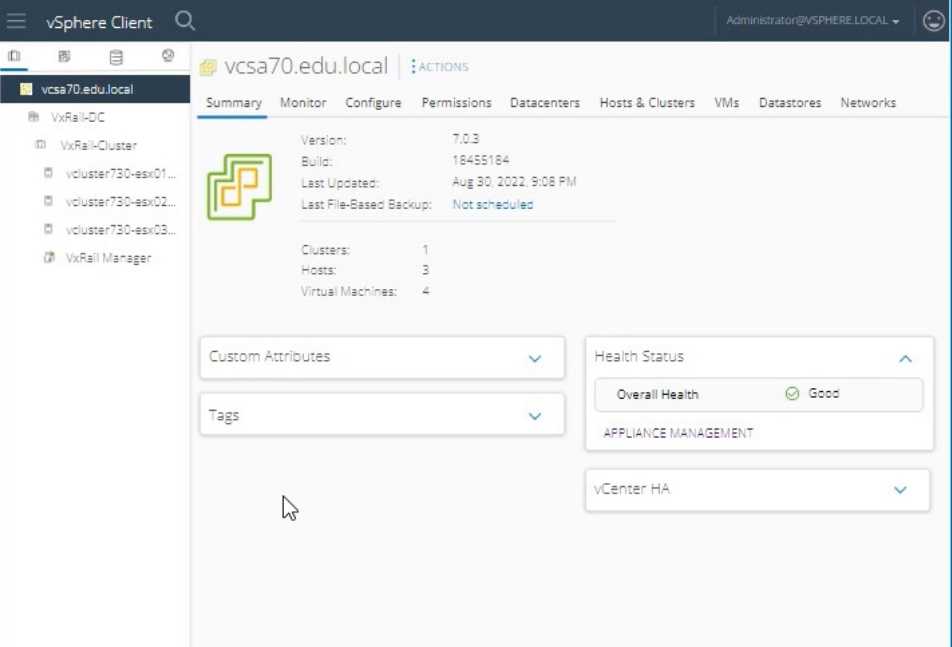
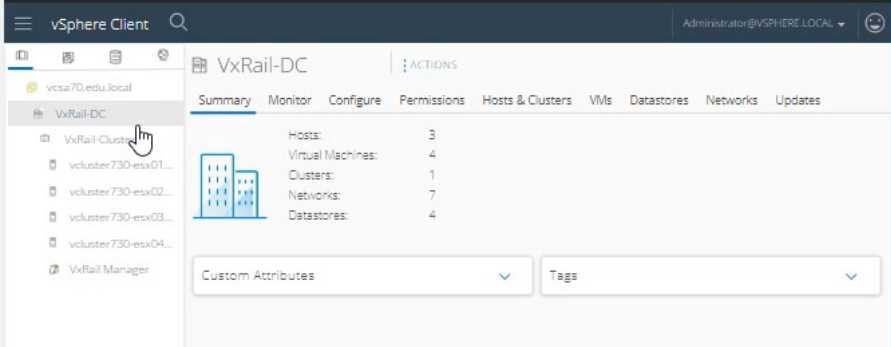
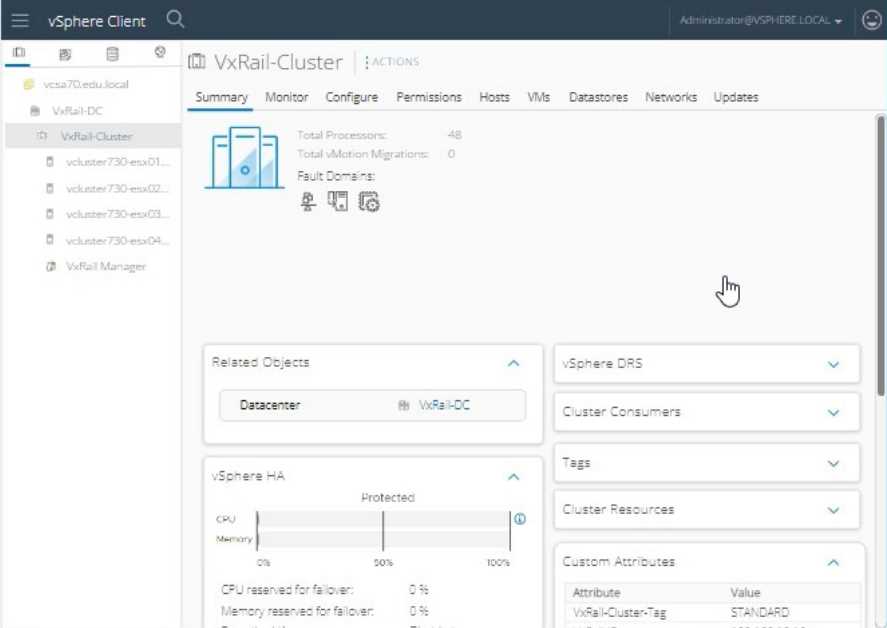
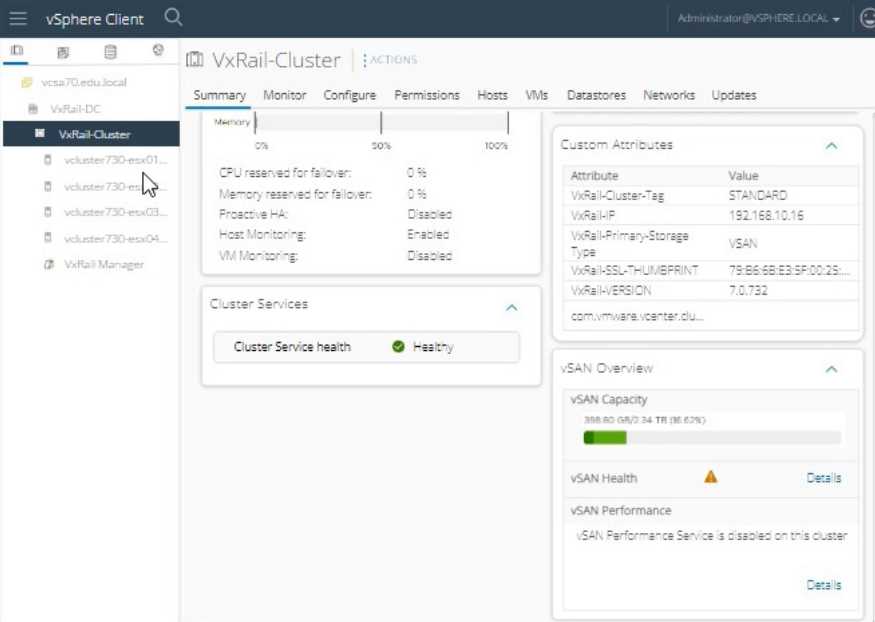
below.
Explanation:
To prepare the system for maintenance mode and avoid unnecessary vSAN re-synchronization, follow
these steps:
Log in to vSphere Client:
Open the vSphere Client.
Enter the username: [email protected].
Enter the password: VMw@r3!123.
Click Login.
Navigate to the Host:
In the vSphere Client interface, navigate to Hosts and Clusters.
Expand the VxRail-DC and then the VxRail-Cluster.
Select the Host for Maintenance:
Select the host you plan to put into maintenance mode (e.g., vcluster730-esx01.edu.local,
vcluster730-esx02.edu.local, etc.).
Enter Maintenance Mode:
Right-click on the selected host and select Enter Maintenance Mode.
In the Enter Maintenance Mode window, you will have several options for vSAN data migration. To
avoid unnecessary re-synchronization, choose Ensure Accessibility.
Ensure Accessibility: This option makes sure that the data remains accessible during maintenance but
does not immediately trigger full data migration. It is the best choice to avoid unnecessary re-
synchronization during a short maintenance window.
Confirm Maintenance Mode:
Click OK to confirm the selection and put the host into maintenance mode.
Verify the Host Status:
Monitor the status to ensure the host enters maintenance mode without triggering excessive re-
synchronization.
Reference:
VMware vSAN Maintenance Mode Options: vSAN Maintenance Mode
=========================
To summarize, selecting Ensure Accessibility when entering maintenance mode helps to avoid
unnecessary vSAN re-synchronization during the maintenance window. This method ensures that
data remains accessible and minimizes the impact on the cluster’s performance and availability
during the maintenance activity.