to Dell PowerScale documentation.
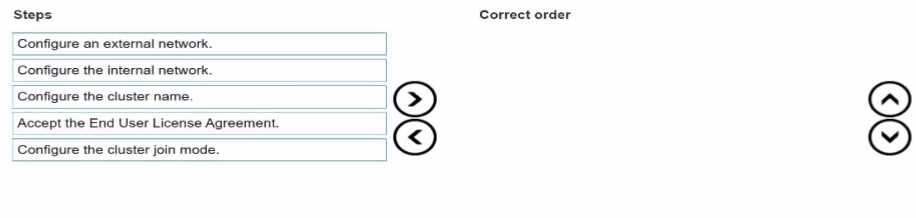
1. Accept End User License Agreement
Purpose:
Before any configuration can begin, you must accept the End User License Agreement (EULA) to
comply with legal requirements and proceed with the cluster setup.
Action:
Review the EULA presented in the Configuration Wizard.
Select the option to accept the terms and conditions.
Dell PowerScale Reference:
Dell EMC PowerScale OneFS Installation Guide
Chapter: Initial Configuration
The Configuration Wizard begins by displaying the EULA, which must be accepted to continue.
Best Practices:
Carefully read the EULA to understand your rights and obligations.
2. Configure Cluster Name
Purpose:
Assigning a cluster name is essential for identification and management purposes within your
network environment.
Action:
Enter a unique and descriptive name for the cluster when prompted.
Dell PowerScale Reference:
Dell EMC PowerScale OneFS Installation Guide
Section: Configuring Cluster Settings
After accepting the EULA, the wizard prompts for cluster-specific settings, starting with the cluster
name.
Best Practices:
Use a naming convention that aligns with your organization's standards.
Ensure the cluster name is DNS-resolvable if necessary.
3. Configure Cluster Join Mode
Purpose:
Determine whether to create a new cluster or join an existing one.
Since you are creating a new cluster, you need to select the appropriate join mode.
Action:
Choose "Create a new cluster" from the available options.
Dell PowerScale Reference:
Dell EMC PowerScale OneFS Installation Guide
Section: Cluster Creation Options
The wizard asks whether to create a new cluster or join an existing one.
Best Practices:
Verify that all nodes intended for the cluster are correctly cabled and powered on.
4. Configure Internal Network
Purpose:
Set up the internal networking (back-end network) that enables communication between nodes
within the cluster.
Critical for cluster operations, data replication, and management traffic.
Action:
Configure settings for internal interfaces int-a and int-b.
Assign IP address ranges and netmasks as required.
Dell PowerScale Reference:
Dell EMC PowerScale Networking Configuration Guide
Chapter: Configuring Internal Networks
Details on setting up the internal network interfaces during cluster creation.
Best Practices:
Use separate subnets for int-a and int-b to enhance redundancy.
Ensure that the internal network is isolated from external networks for security.
5. Configure External Network
Purpose:
Establish the external networking (front-end network) that allows clients and services to access the
cluster.
Action:
Configure settings for external network interfaces.
Assign IP addresses, netmasks, gateways, and DNS information.
Dell PowerScale Reference:
Dell EMC PowerScale Networking Configuration Guide
Chapter: Configuring External Networks
Provides guidance on setting up external interfaces after internal networking is configured.
Best Practices:
Plan IP addressing to avoid conflicts within your network.
Configure SmartConnect zones if required for load balancing and failover.
Additional Notes:
Sequence Importance:
Following this sequence ensures that foundational settings are established before dependent
configurations.
For example, internal networking must be configured before external networking to ensure proper
node communication.
Validation and Testing:
After completing the Configuration Wizard, validate the cluster setup by checking node status and
network connectivity.
Use the OneFS web administration interface or CLI commands to verify configurations.
Reference to Dell PowerScale Documentation:
Dell EMC PowerScale OneFS Installation Guide
Provides step-by-step instructions for initial cluster setup.
Dell EMC PowerScale Networking Configuration Guide
Offers detailed information on networking configurations and best practices.
Dell EMC PowerScale OneFS Administration Guide
Useful for advanced configurations and cluster management post-installation.
Conclusion:
By following the sequence outlined above, the platform engineer can successfully create a new Dell
PowerScale cluster using the Configuration Wizard. Each step builds upon the previous one, ensuring
a robust and properly configured cluster ready for operation.