Step by Step Comprehensive Detailed Explanation:
Understanding the Error:
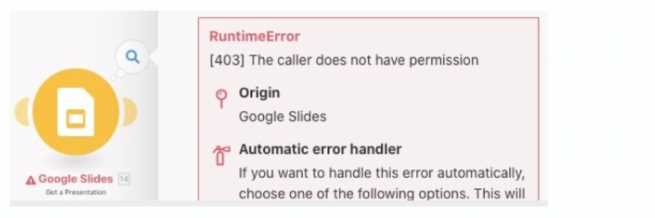
The error message [403] The caller does not have permission is a Google API permission error.
It typically indicates that the user or application does not have the required access rights to perform
the requested action on the Google Slide presentation.
Option Analysis:
A . Reauthorize their Google connection:
This step might be necessary if the user's credentials or token have expired, but this is not the
primary issue here since the error specifically states a permission problem.
B . Update Google sharing permissions for the document:
Correct. The error suggests that the Google Slide document has not been shared with the user or
service account being used in Fusion. Updating the sharing settings to grant proper permissions (e.g.,
"Editor" or "Viewer" access) will resolve the issue.
C . Contact Workfront Support to troubleshoot the root cause:
While Workfront Support can help with Fusion-related issues, this error originates from Google and
is unrelated to Workfront's systems.
D . Search the Google status site to determine the cause:
The Google status site is useful for identifying system-wide outages, but this is a user-specific
permission issue, not a Google platform-wide problem.
Steps to Resolve:
Open the Google Slide presentation.
Update the sharing permissions:
Grant access to the Google account or service account being used in Fusion.
Ensure the account has at least Editor or appropriate access rights.
Save the changes and rerun the Fusion scenario.
Why Updating Permissions is Best:
This action directly addresses the root cause of the error, which is inadequate access rights.
Once permissions are updated, Fusion will be able to connect to and manipulate the Google Slide
document as intended.
Reference:
The [403] The caller does not have permission error is documented in Google API troubleshooting
guides, which recommend verifying and updating document sharing settings for resolving access
issues.

 What action should the user take to resolve the error message?
 What action should the user take to resolve the error message?